Checking SKO barcodes with a scanner
What a SKO barcode is
A SKO is the unit the warehouse counts: one box of six, one bag of a hundred, one single item. Each SKO can carry two numbers. The SKO barcode is the CODE 128 printed on the outer packing, the one pickers and goods-in scan. The unit EAN13 is the small retail barcode on the product itself, which belongs to the product and shows on the website. The scanner page reads both, but it only ever moves the outer one. The unit EAN has its own editor on the SKO page and is left alone here.
Opening the dig site
In your warehouse, open Inventory and press Manage barcodes at the top right. The page is built for a phone or a tablet: one column, one scan box, and buttons wide enough for a thumb. Any barcode scanner that types like a keyboard works, and you do not need to tap the box first, the page listens for the scanner wherever you are on it. If you have no scanner, type the number and press Enter.
Reading an inscription
Scan the label on a box. One of three things happens.
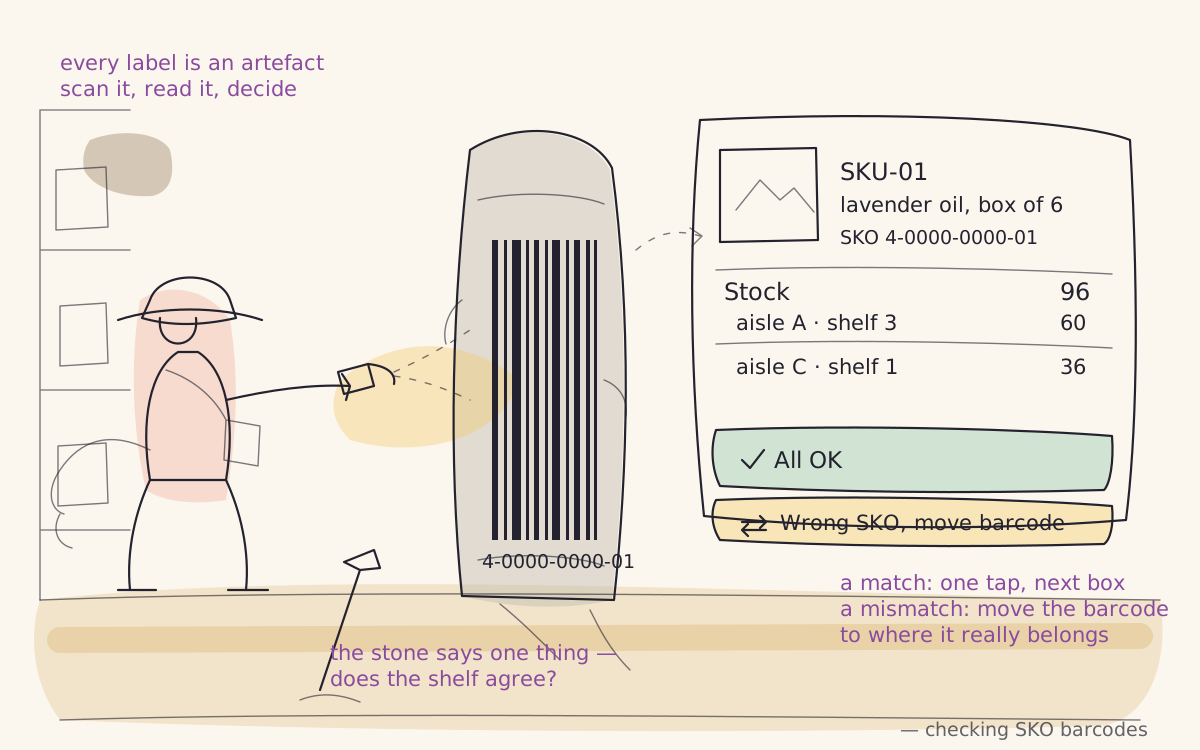
The barcode is known. A card appears with the SKO's picture, code and name, its state, the pack size, the number that matched and whether it was the outer SKO barcode or the unit EAN, the total stock, and every location that holds it with the quantity in each. Look at the shelf. If the box in your hand is that SKO, press All OK. The card clears, the counter at the top goes up by one, and you move to the next box.
The barcode is known but the shelf disagrees. The card names one SKO and the box holds another. Press Wrong SKO, move barcode. A search box opens; type part of the code or the name of what is really in the box, tap it in the list, and confirm with Assign. The barcode leaves the SKO that wrongly held it and settles on the one you chose. The card turns green with Barcode assigned so you know it took.
The barcode is unknown. A red Barcode not found card shows the number aiku just read. If you know what the box is, press Assign to a SKO, search for it, tap it and Assign. If you do not, press Skip and carry on; the number is not recorded anywhere.
Working the other way round
Sometimes you start from the SKO rather than the label: a box has been relabelled and you want to register the new sticker. From an empty page press Find a SKO, search and tap the SKO, then scan the label. The Assign button lights up once a number has been read, and pressing it puts that barcode on that SKO.
What moving a barcode does underneath
A SKO barcode is a single truth for the whole group. When you move one, aiku takes it away from every SKO that carried it, in every organisation sharing that stock, and gives it to the SKO you chose, again in every organisation. If the chosen SKO already had a different outer barcode, the new one replaces it. Every change is written into the SKO's history, so a supervisor can always see when a barcode moved and who moved it.
There are two things the page will refuse. A number that is already the barcode of another SKO of the same stock in your own organisation cannot be split between the two; and a number with characters a label printer cannot print is rejected. In both cases a red notice explains, and nothing changes.
A good session
Work an aisle end to end rather than hopping about, so the counter tells you something. A found card with a sound is the normal case; a low buzz means not found and deserves a look. When you meet a label whose SKO you cannot identify, skip it and note the location, then come back with someone who knows the range rather than guessing. A wrong assignment is easy to undo, scan the label again and move it back, but a guess that nobody checks stays wrong.